Model Selection & Training Data
This page controls which inference models are currently online and lets operators upload training datasets to the Inference Server. The console does not run training itself — it only handles activation/deactivation and upload triggers.
Uploading a CSV from this page notifies the Inference Server to start a re-training run. The resulting model appears in the table above with staged status, awaiting QA review before it can be activated.
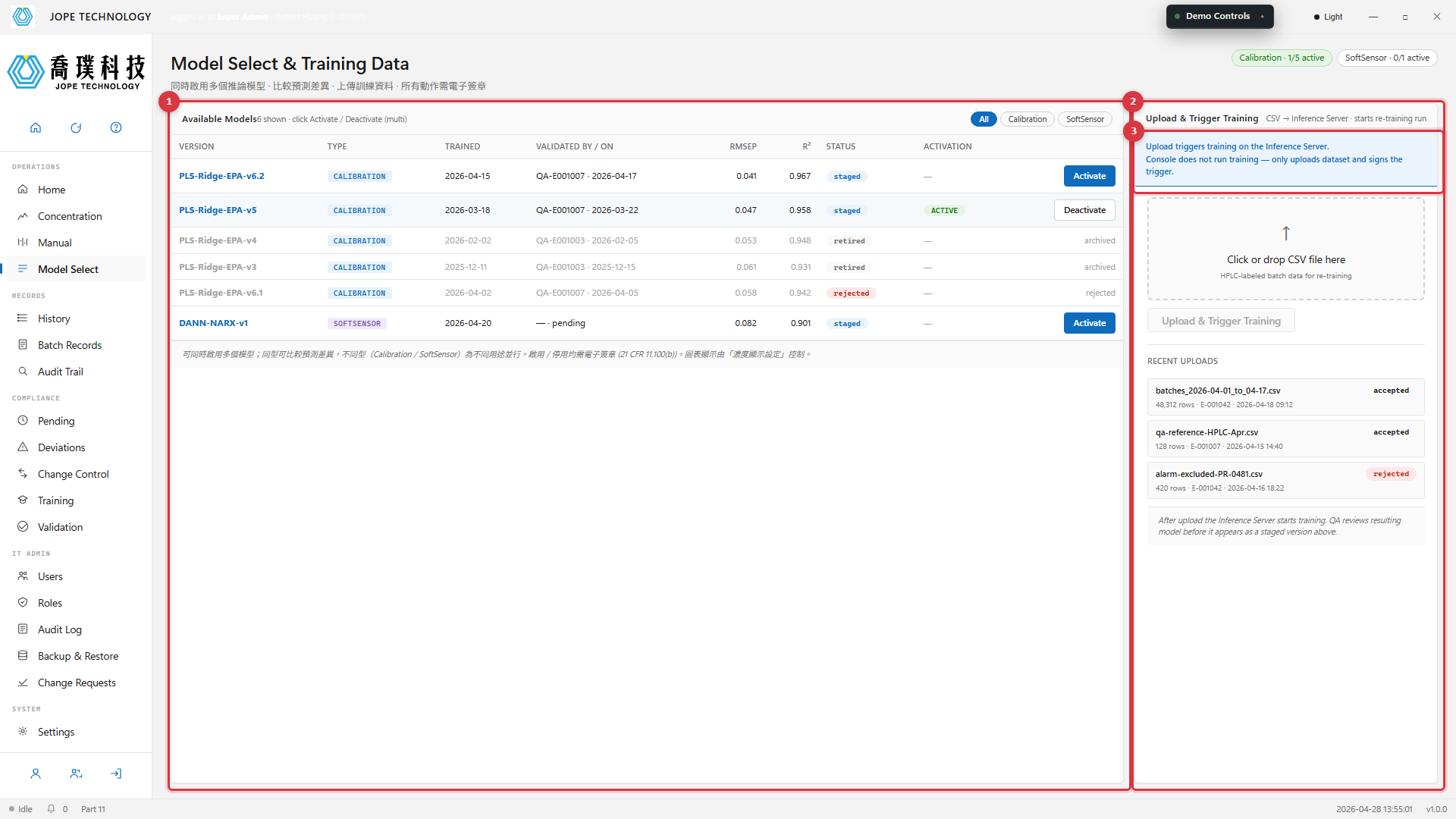
Figure 6.1 · Available Models table on the left · Upload & Trigger Training panel on the right
Multiple models active at once
The model table supports activating multiple models simultaneously, useful for comparing prediction differences between algorithms or training batches. Behaviour:
- Each row's right-side button: shows Activate (blue) when inactive — clicking opens the signature dialog and on signing, the row becomes active
- Active rows show Deactivate (white) instead, the ACTIVATION column displays a green ACTIVE label, and the entire row is tinted light blue
- Both Activate and Deactivate require electronic signature (21 CFR 11.100(b)); audit and change-control records are written automatically
- Which active models are displayed on the chart is controlled by the Display Settings dialog on the Concentration page; this page only handles the activation lifecycle
Model classification (Calibration / SoftSensor)
Each model carries a Type label, in two classes:
- Calibration · maps the current Raman spectrum to current concentration
- SoftSensor · dynamic soft-sensor model · projects future concentrations (time-series)
Three filter chips above the table — All / Calibration / SoftSensor — let operators focus on one class when many models are loaded. The pills in the header track active counts per class (e.g. Calibration · 2/5 active, SoftSensor · 1/1 active).
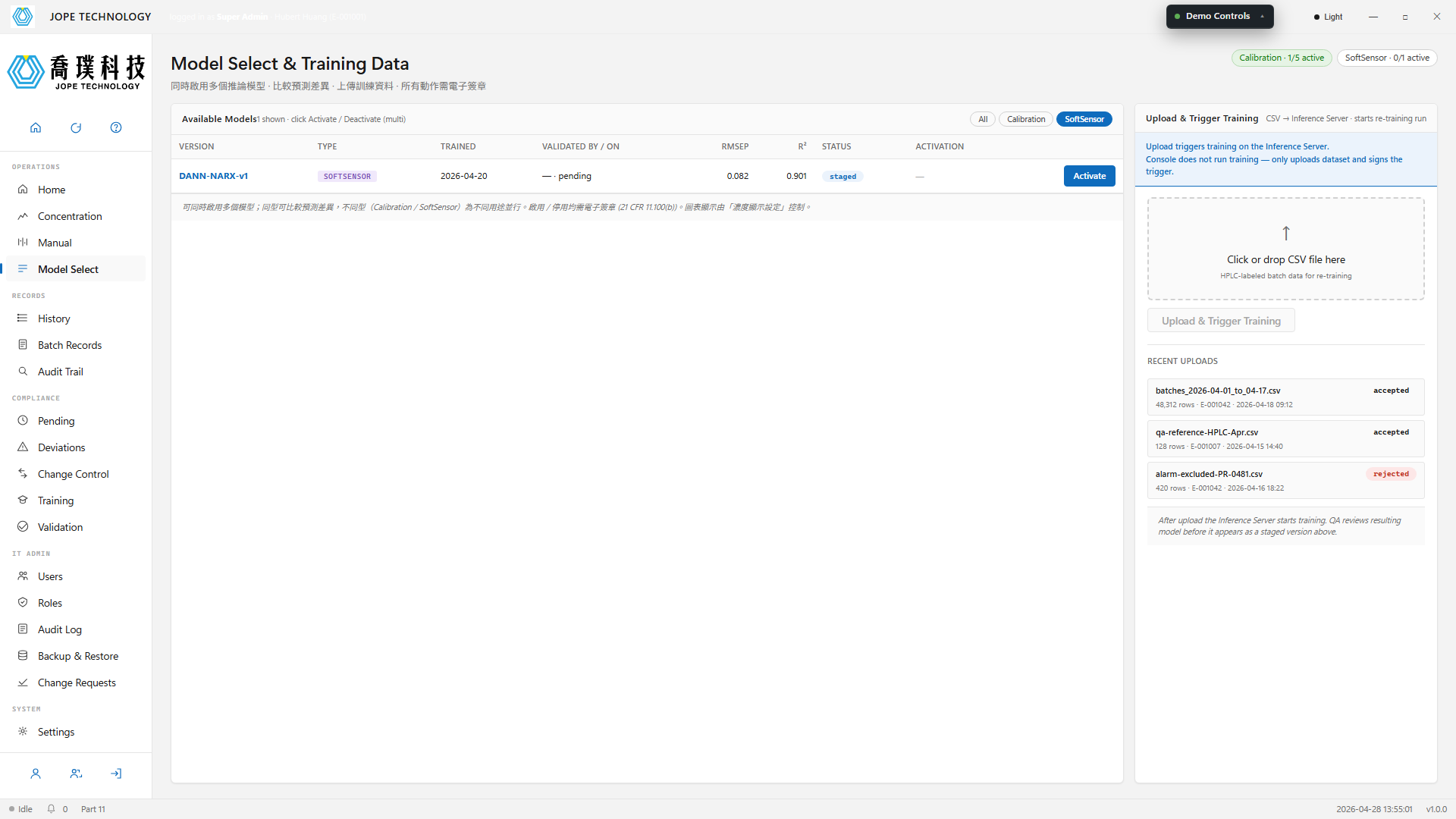
Figure 6.2 · Model table with the SoftSensor filter applied · dynamic soft-sensor models listed alone
Upload flow
- Drop a
.csvonto the drop zone, or click to pick - The system validates the file (
.csvextension · MIME ·20 MBmax). Invalid files trigger a warning toast and are rejected - Click Upload & Trigger Training. The signature dialog opens
- Sign to confirm. The file enters the queue and the Inference Server begins training
- A toast confirms upload; the file appears in Recent Uploads with status
queued - Once QA validates the new model, it appears as
stagedat the top of the model table